
Manage the Teams tenant
You manage the tenant from the Teams Management portal, which Live Hub opens for you.
To open the Teams Management portal:
-
In the Navigation pane, expand Voice channels, and select Microsoft Teams.
-
Under Teams connection, click Manage.
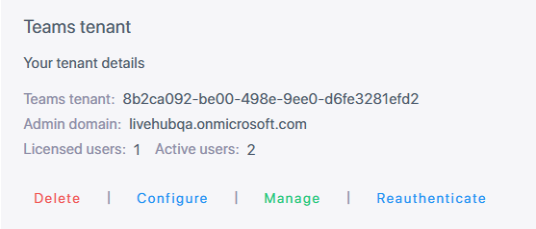
The portal opens in a new browser tab.
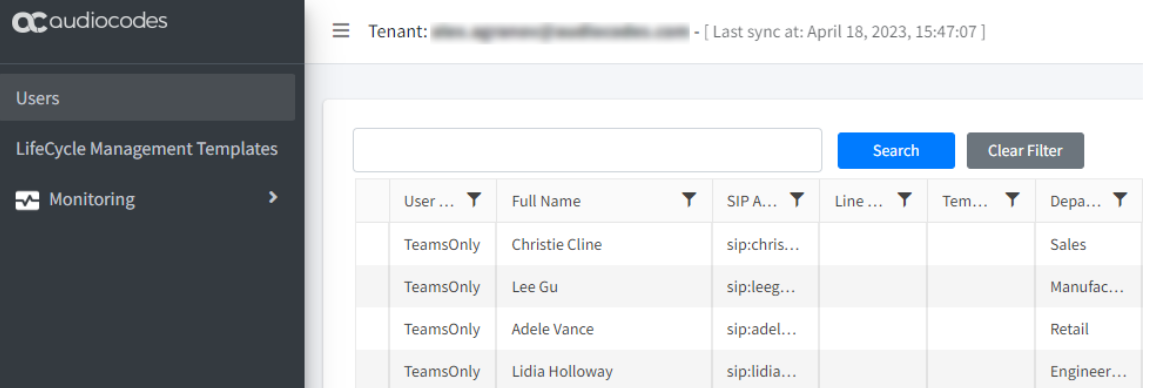
From the portal you can:
The Users screen lists a user named ump-activation-xyz. Live Hub creates that
user and depends on it, so do not delete it.
Troubleshooting
If the Users screen lists several ump-activation-xyz users, the tenant was
probably connected to Live Hub before and never cleaned up afterwards. Clean it up, as
described in
Clean up residual configuration in Teams tenant,
and then delete the older users, which you can identify by the lower name suffix.
Several such users can also mean that two Live Hub accounts are connected to the same tenant. Disconnect one of them, and then clean up after it.